 Teslita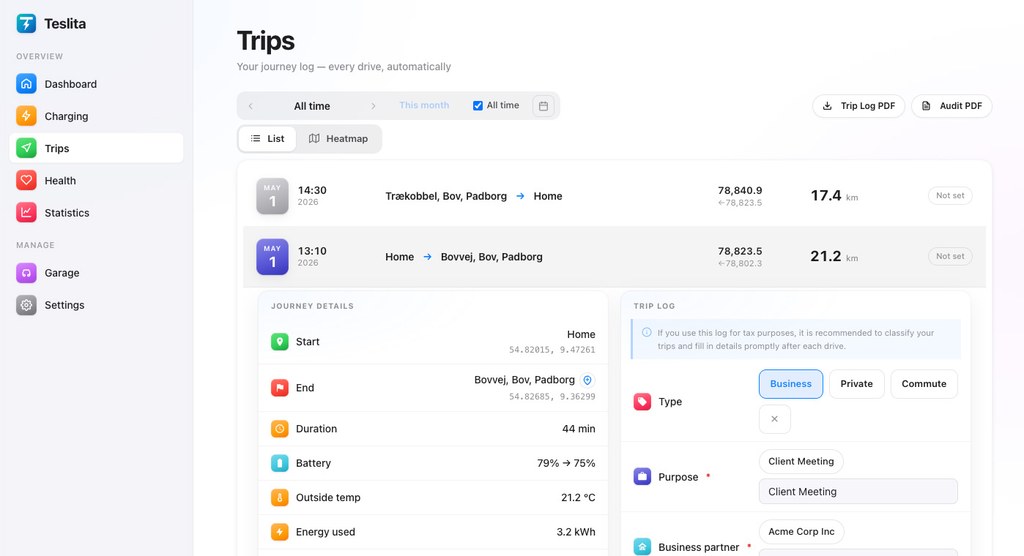
Everything comes across
5 imported drivesNot a summary — the actual history. What arrives depends on how much your old app recorded, and Teslita takes all of it.
Every drive
Start and end, distance, duration, battery used, temperature — and the route itself where your export contains position data, so the map is drawn properly rather than as a straight line between two points.
Every charge
Energy added, peak power, start and end battery, duration and location. Where the export has the detail, the charging curve is rebuilt too, so an imported session gets the same chart a native one does.
Places, not coordinates
Imported start and end points are looked up and given real addresses, the same way Teslita names the places in your own driving. Your home is recognised and labelled as home.
Costs you already recorded
Where your old app stored what a charge cost, that comes across too — including whether it was free — so your spending history is not left with a hole in it.
Years, not weeks
There is no cut-off on how far back an import may reach. A file covering six years of driving is read the same way as one covering a month.
Nothing is guessed
An import that quietly gets something wrong is worse than no import at all. So where the file states a fact, the file wins.
4 imported drivesUnits come from the file
If your export says its temperatures are Celsius and its distances kilometres, that is how they are read — even if you picked something else in the form. A wrong unit is invisible in the result, so it is not left to a dropdown.
Clocks are handled properly
Timestamps are converted from your export's own time zone. The hour that repeats when the clocks go back is resolved from the surrounding readings rather than discarded, so an autumn night does not lose an hour of driving.
Skipped rows are explained
Some rows in an export carry nothing usable — a poll taken while the car slept, a date in a format nobody can read. The preview tells you how many, and exactly why, instead of showing you a number with no story behind it.
Duplicates stay out
If Teslita already recorded a period, the import does not write over it. Your own data always wins against a file.
You see it before it lands
3 imported drivesA preview, not a leap of faith
Upload the file and Teslita reads it without writing anything. You get the row count, the period it covers, how many rows will be skipped and why — and only then a button that says Import.
You choose the car
If the export names a car Teslita does not recognise, it will not guess. You pick which vehicle the history belongs to. A file with two cars in it is split, and you decide about each one separately.
Nothing is written until you say so
Everything up to that point is reversible by simply walking away. Close the page and no row has been added.
Undo, whenever you like
3 imported drivesOne button, everything back
Every imported row is tagged with the import it came from, so removing it is exact. Nothing of yours is caught up in it, and nothing of the import is left behind.
Not just at the time
The undo does not expire. An import from last month can be removed today, and the completed imports are listed with the button right there.
Your own data is untouched
The undo only ever removes rows that import wrote. Anything Teslita recorded from your car itself is not part of it and cannot be affected.
Imported rows say so
2 imported drivesMarked, always
Every imported drive and charge carries a small Imported badge, in the trips list, on the charging list and in the app. You can always tell at a glance what came from a file and what your car recorded.
Honest in reports
A signed PDF that includes imported rows says so inside the signed document itself. The provenance travels with the report rather than being quietly dropped.
Where you are coming from
3 imported drivesTessie
Export your data from Tessie's settings and you get a ZIP of your car's full recorded history. Teslita reads it as tick data, which means real routes and real charging curves — the richest import of the four.
TeslaMate
Whether you export the summary tables or the raw position and charge data, both are understood. The raw form gives you routes and curves; the summary form gives you the drives and charges themselves.
TeslaFi
TeslaFi's monthly CSV downloads go in as they are — one month or a folder of them. The sleeping-car rows it writes between drives are recognised and left out rather than imported as empty trips.
Tronity
Tronity’s spreadsheet exports go in as they are — the trips sheet or the charges sheet, .xlsx or CSV. It is a summary export rather than a recording, so there are no routes; distances, battery levels, charges and costs all come across, and the preview says so before you commit.
How it works
Three steps, and the middle one is the one that matters.
Export from your old app
Tessie, TeslaMate, TeslaFi and Tronity all offer a data export. Download it — a ZIP or a CSV, whatever it hands you.
Upload it and look
Open Settings → Data import in Teslita, pick the file, and read the preview. This is the step that decides whether the import is right.
Press Import
The work runs in the background — you can leave the page. When it finishes, your history is simply there, badged as imported.
Two ways to switch
Moving to a new app usually means choosing between your history and a fresh start. It should not.
Starting over
- Years of driving left behind in an app you no longer use
- Yearly totals that begin the day you signed up
- A second subscription kept alive just to keep the old data readable
- Costs and mileage split across two places for ever
Bringing it with you
- Your full history in one place, from the first drive you ever recorded
- Totals, averages and reports that cover all of it
- The old subscription cancelled with nothing lost
- One app, one history, undoable if you change your mind
What it costs
Nothing
Importing is part of Teslita, not an add-on
Free, like the rest of it
There is no import tier, no per-row charge and no card to add. Bring across as much history as you like.
- Unlimited rows and unlimited history
- Tessie, TeslaMate, TeslaFi and Tronity
- Routes and charging curves where the export has them
- Preview before anything is written
- Undo any import, any time
- Works on the web and in the app